Repository
Introduction
Users in the Swivel database can come from a number of sources, referred to as user repositories. Each user belongs to exactly one repository.
Currently, the following types of repositories are supported:
XML: Built-in repositories maintained within the Swivel server.
LDAP: Including Active Directory, Simple LDAP, and ADAM (AD LDS).
External Database: Users imported via JDBC from an external database.
Agent: Agents configured to act as repositories using API calls.
Supported Repositories
Repository |
Relationship |
|---|---|
ADAM (AD LDS) |
Read/Write |
Active Directory |
Read Only |
Database |
Read Only |
LDAP Writeable |
Read/Write |
Simple LDAP |
Read Only |
XML |
Read/Write |
Configuration Guide: Active Directory
This section guides you through configuring an Active Directory repository, which is the most common read-only repository type.
Phase 1: Preparation
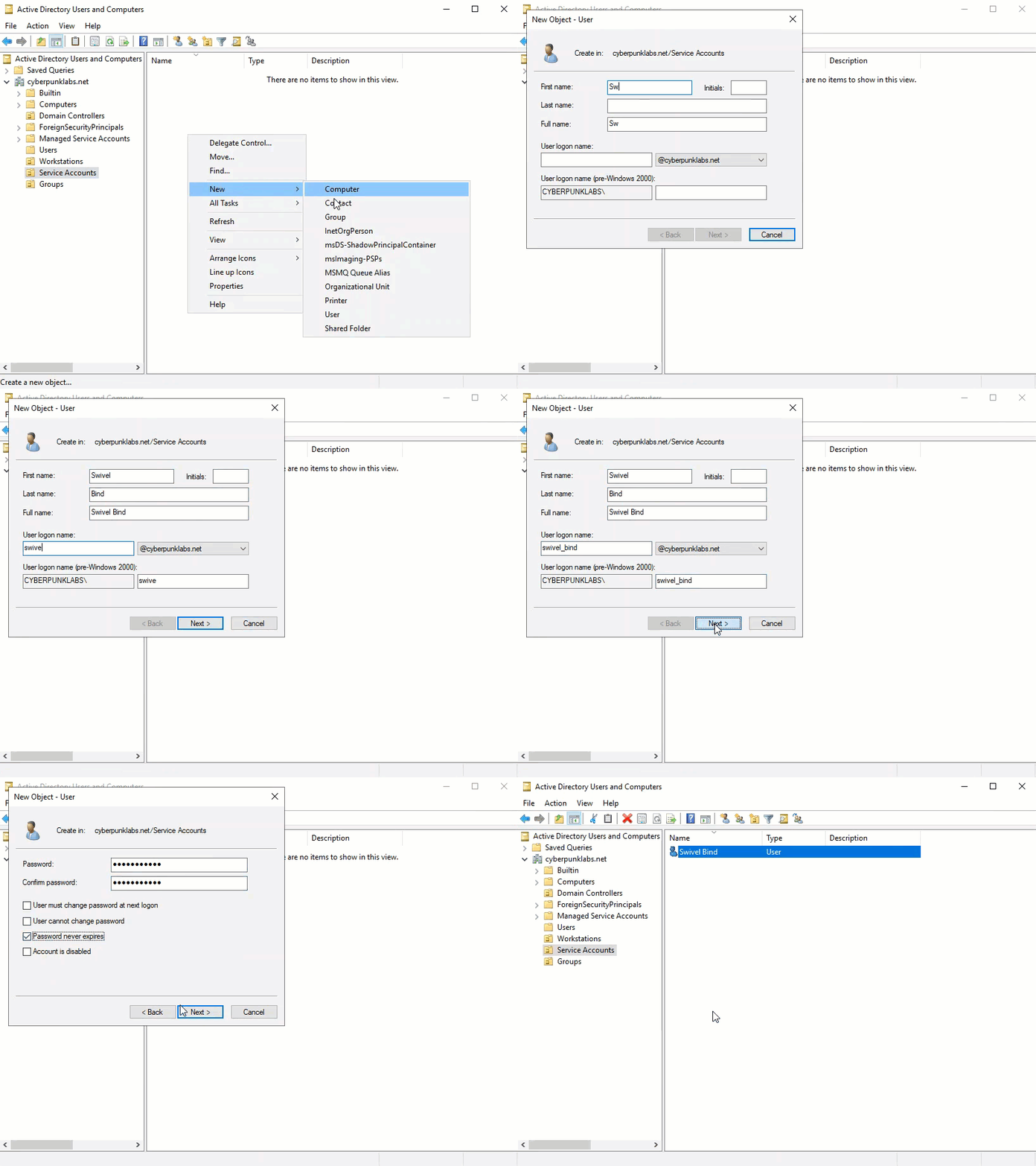
Bind User: Create a dedicated service account (e.g.,
swivel_bind) in Active Directory with read-only access. Set the password to never expire.
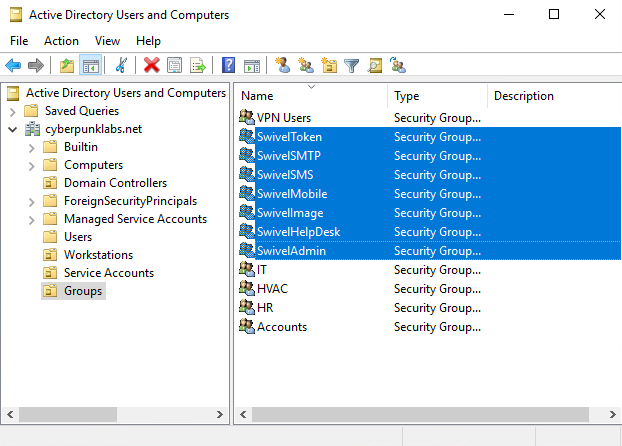
Groups: Create Security or Distribution groups to manage Swivel users (e.g.,
SwivelUsers,SwivelAdmin). * Warning: Do not target the “Domain Users” group directly, as Swivel cannot import users from a “Primary Group”.
Ports: Ensure connectivity to the Domain Controller on the appropriate port.
389: Standard LDAP.
636: LDAPS (Recommended).
3268: Global Catalog.
3269: Global Catalog SSL.
Phase 2: Repository Configuration
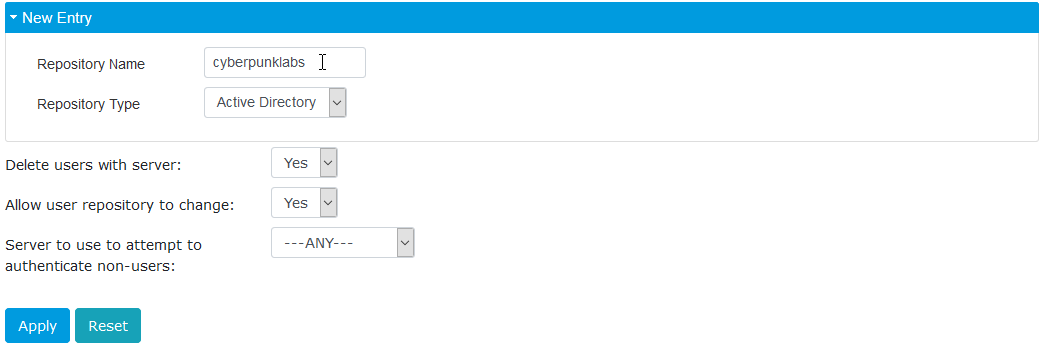
Step 1: Create the Repository
Navigate to Repository -> Servers.
Select New Active Directory from the drop-down list.
Enter a Name (e.g., the Domain Name) and click Apply.
Step 2: Connection Details
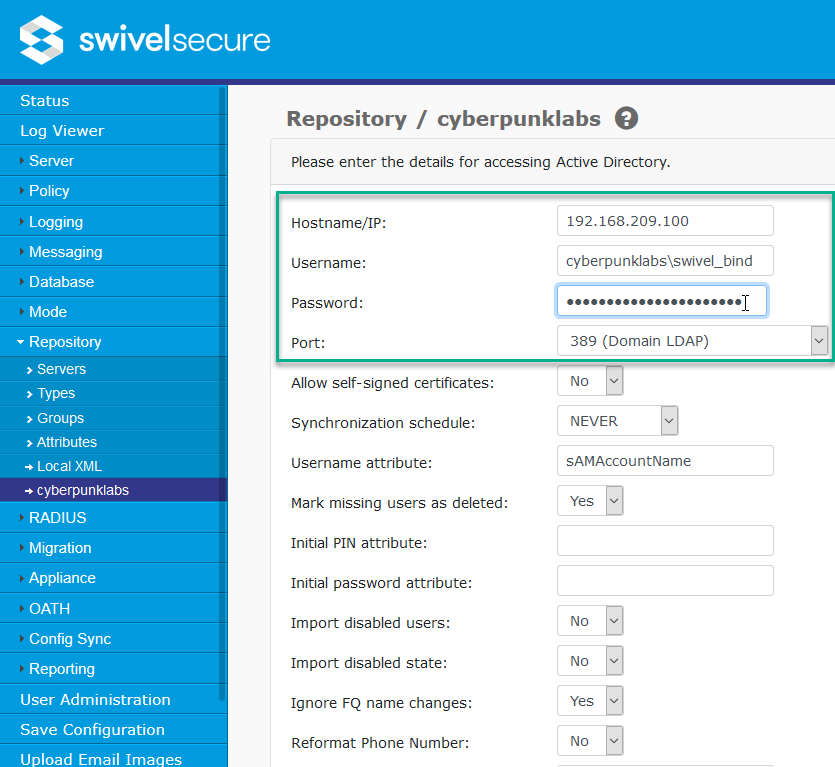
Select the new repository from the left-hand menu to configure it.
Hostname/IP: IP or FQDN of the Domain Controller. If using SSL, this must match the certificate CN unless a SAN is present.
Username: The bind user credentials (e.g.,
user@domain.comordomain\user).Password: The bind user password.
Port: Select 636 or 3269 for SSL connections.
Allow self-signed certificates: Set to Yes if using an internal CA or self-signed certificate.
Step 3: User Options
Username Attribute: The attribute used for the Swivel username. Default is
sAMAccountName(e.g.,jsmith). Alternatives includeuserPrincipalName(e.g.,jsmith@domain.com).- Ignore FQ Name changes:
Yes: (Recommended) If a user is moved to a different OU, Swivel updates the path without deleting the user.
No: The user will be deleted and recreated, or a duplicate error will occur.
- Mark missing users as deleted:
Yes: (Recommended) Users removed from the AD group are disabled in Swivel but their data (PINs, tokens) is retained.
No: Users are immediately permanently deleted.
Import disabled users: If No, users disabled in AD are not imported at all.
Synchronization schedule: Set how often Swivel checks AD for changes (e.g., daily or hourly).
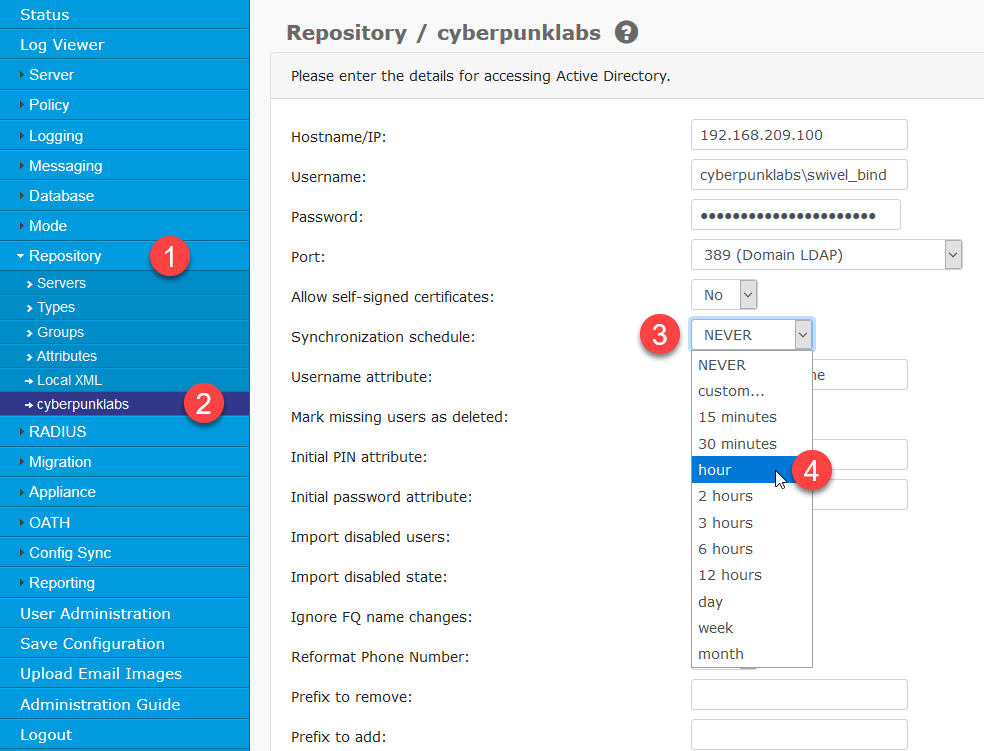
Step 4: Test Connection
Click Apply, then click the Browse in window button at the bottom of the page to verify the connection.
Phase 3: Group Mapping
Navigate to Repository -> Groups.
Locate the specific Swivel group you wish to populate (e.g.,
SwivelUsersorSwivelImage).Click the Browse button next to your Active Directory repository.
Browse the directory tree, select the AD group created in Phase 1, and click Select.
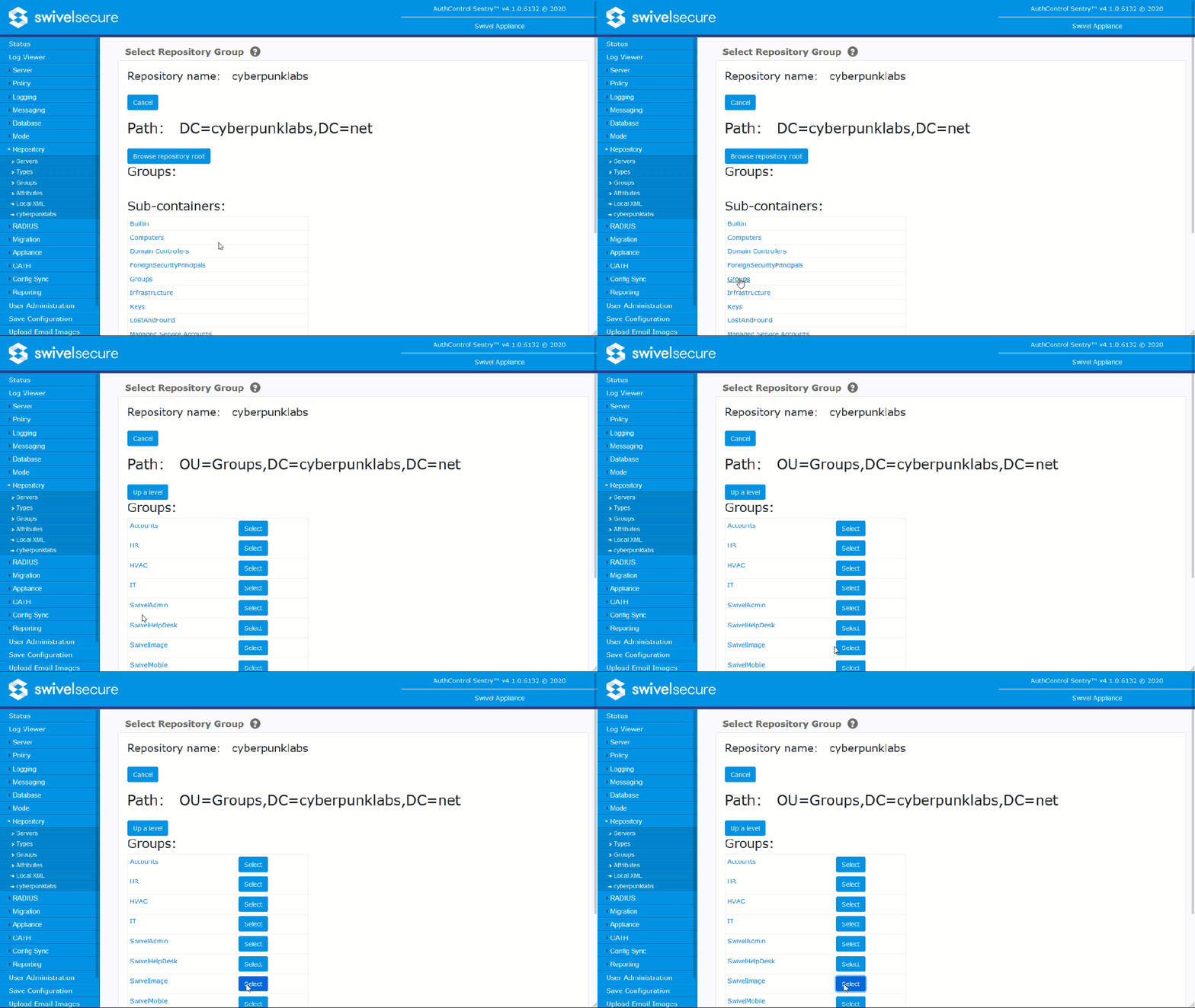
Click Apply. The Distinguished Name (DN) will populate the field.
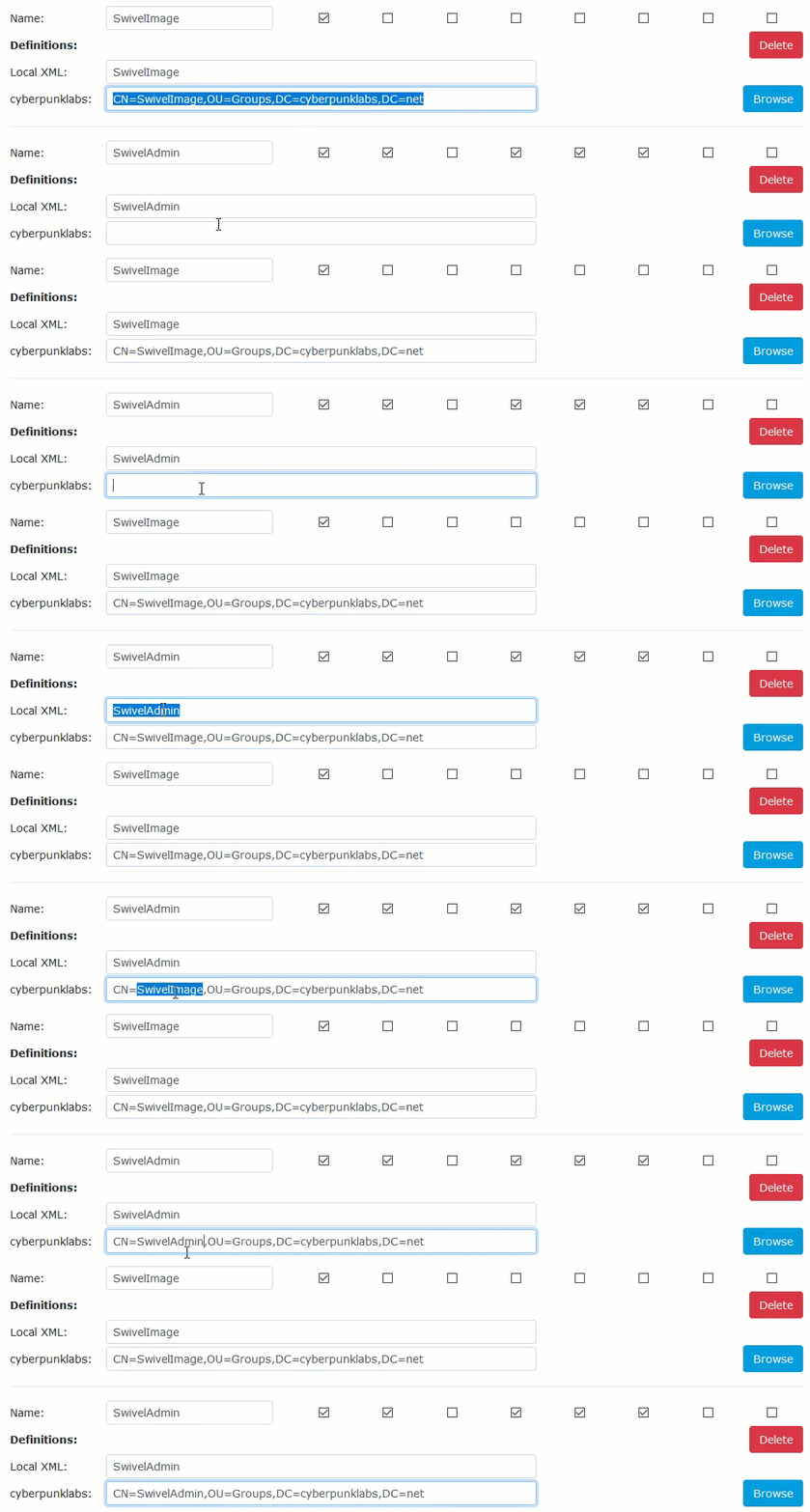
Phase 4: Synchronization
1. Perform a Test Sync
Repositories import users into the Swivel database by running a User Sync.
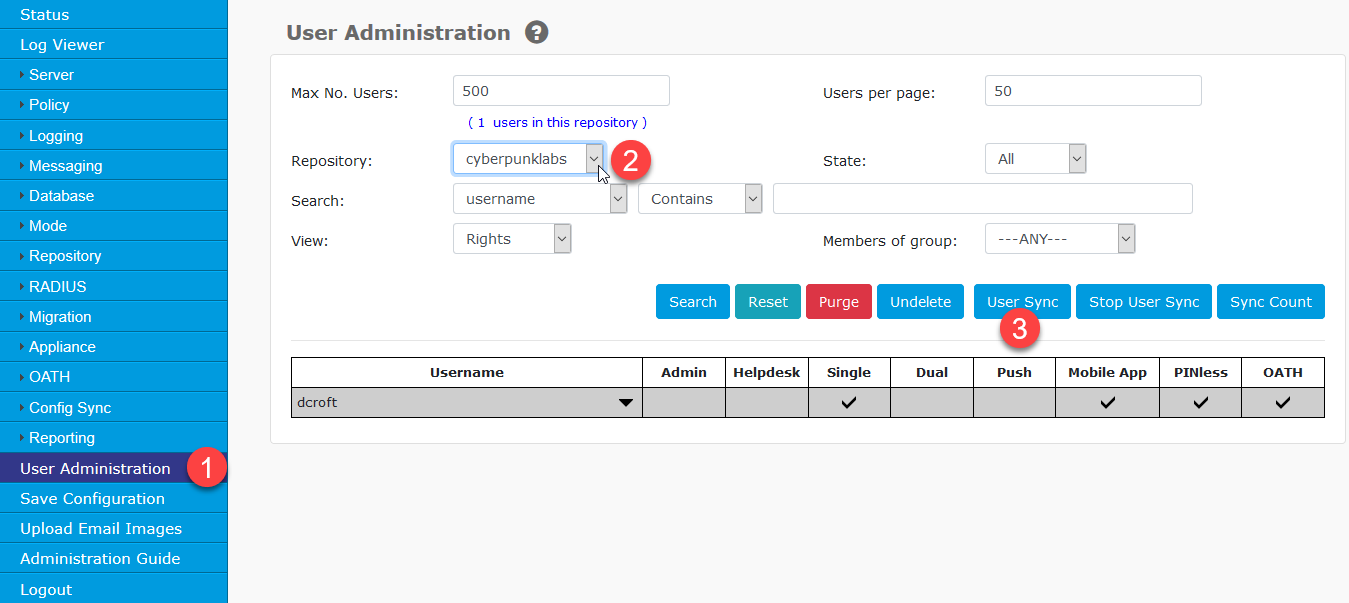
Navigate to User Administration.
Select the repository from the drop-down menu.
Click User Sync.
Note
Writeable repositories (like XML) sync automatically when changed in the console, but read-only repositories (like AD) require a manual or scheduled sync to update.
2. Setup Scheduled Sync
If the test is successful, configure automatic synchronisation.
Go to Repository -> <Your Repository>.
Set the Synchronisation Schedule (Recommended: Once per hour).
Click Apply.
Warning
If using High Availability (HA), each AuthControl Sentry appliance must synchronise at different times.
Configuration Guide: XML Repositories
This section guides you through configuring an XML Repository.
Unlike external directories (Active Directory/LDAP) which are typically Read-Only, an XML repository is Read/Write and is fully contained within the AuthControl Sentry appliance. It is ideal for:
Emergency Administration: Creating local admin accounts that work even if external directory connection is lost.
Testing: Rapidly creating users without needing access to corporate AD.
Small Deployments: Managing users without an external repository.
Phase 1: Basic Configuration
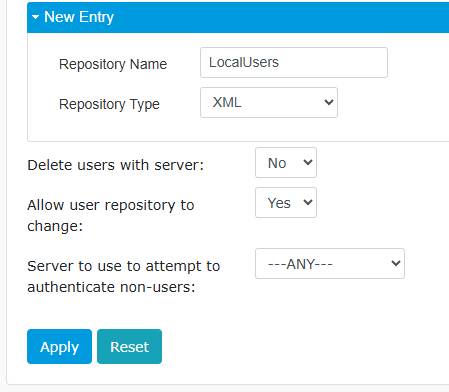
Step 1: Create the Repository
Navigate to Repository -> Servers.
Expand New Entry and select XML from the drop-down list.
Enter a Repository Name (e.g.,
LocalUsers) and click Apply.
Step 2: File Settings
Select the new repository from the left-hand menu to configure it.
- Filename: By default this will be called Repository. Optionally enter a different filename where user data will be stored (e.g.,
users.xml). Note: If this file does not exist, Swivel will create it automatically when the first user is added.
- Filename: By default this will be called Repository. Optionally enter a different filename where user data will be stored (e.g.,
Synchronization schedule: Set to NEVER by default. It’s possible to schedule a sync of the repository in the event that this file is manually or programmatically edited, to sync users into the Swivel database.
Mark missing users as deleted Set to Yes by default, this acts as a recycle bin in case users are accidentally removed from the XML file, their data is not immediately deleted. Setting this to No will mean that users are removed upon user sync without being marked for deletion. Users marked as deleted will require purging to remove them from the database.
Initial PIN attribute Define the XML element name containing the users’ initial PIN.
Initial Password attribute Define the XML element name containing the users’ initial Password.
Reformat Phone Number Using the settings Prefix to add and Prefix to remove enabling this by setting to Yes will carry out the requested changes to prefixes. This is especially useful to reformat the country code on phone numbers automatically for compatibility with downstream SMS gateways.
Add domain qualifier Used in conjunction with the Repository Domain Qualifier you can add a Domain\ or @Domain type suffix or prefix to give users unique usernames.
Phase 2: Group Mapping
Before adding users, you must define the groups they will belong to.
Navigate to Repository -> Groups.
Select your XML repository.
Group Name: Manually type the name of the group you wish to create (e.g.,
XML_AdminsorXML_Users).Click Add.
Repeat for any other groups required.
Phase 3: User Management
Because XML is a Writeable repository, you manage users directly within the AuthControl Sentry console rather than importing them.
Adding a New User
Navigate to User Administration.
In the Repository dropdown, select your XML repository (e.g.,
LocalUsers).Click the Add User button (this button is only visible for Writeable repositories).
User Details: * Username: Enter the unique username. * Group: Select the group defined in Phase 2. * Attributes: Enter the Email, Mobile, etc.
Click Apply.
Editing Users
To update a user’s details (e.g., changing a phone number or locking an account):
Select the repository in User Administration.
Click the Username to edit and click the Edit button.
Update the fields and click Apply.
Phase 4: High Availability (HA) Configuration
Warning
Critical Configuration Requirement If you are running multiple AuthControl Sentry servers (HA/Cluster), you must not configure an XML repository with the same name on both servers. Doing so will cause data loss or synchronisation conflicts.
The “Local File” Constraint
XML repositories refer to a physical XML file which sits on the filesystem of the specific appliance.
Server A cannot read the XML file on Server B.
However, both servers share the same database contained synced in user data from these XML Repositories.
If you configure a repository named “LocalXML” on both servers:
Server A syncs and adds
User_Ato the shared database.Server B syncs, sees its local “LocalXML” file is empty, and consequently deletes
User_Afrom the shared database to match its own empty file.
Configuration Strategy: Split Repositories
To ensure resilience, you must configure unique repositories for each appliance in the cluster.
Recommended Setup
1. On the Primary Server:
Create an XML repository named XML_Primary.
* File: primary_users.xml
* Admin User: Create a user admin_primary inside this repository.
2. On the Standby Server:
Create an XML repository named XML_Standby.
* File: standby_users.xml
* Admin User: Create a user admin_standby inside this repository.
Operational Behavior
Normal State: The Swivel database contains both
admin_primaryandadmin_standby. You can log in to the management console on either server using either username.- Editing Users:
To edit
admin_primary, you must be logged into the Primary Server console.To edit
admin_standby, you must be logged into the Standby Server console.
Disaster Recovery: If the Primary Server fails completely, you can still log in to the Standby Server. Although you cannot edit the “Primary” users (as the file is lost with the server), you can still edit and manage the “Standby” users to maintain administrative access.
Summary of Rules
Rule 1: Never use the same Repository Name (e.g., “XML”) on two different servers.
Rule 2: Ensure usernames are unique across all repositories (e.g., do not have a user named “admin” in both XML files).
Rule 3: Always perform a User Sync immediately after modifying an XML repository to propagate changes to the shared database.
Advanced Architecture
High Availability (HA) Configuration
If running multiple Swivel instances:
1. Sync Timing: Ensure synchronisation occurs at different times on each instance (e.g., Primary at XX:00, Standby at XX:30) to prevent LDAP contention.
2. Credentials: Under Transport -> General, set Resend credentials if destination changes to No to prevent duplicate PINs.
Trusted Domains & Global Catalog
Standard LDAP (Port 389) cannot see users in child domains or trusted forests if the group membership crosses domain boundaries.
Solution: Use the Global Catalog.
1. Change the Repository Port to 3268 (or 3269 for SSL).
2. Point the Hostname to a Global Catalog server.
Troubleshooting
Diagnostic Tools
LDAP Browser: Use the “Browse in window” button in Repository settings to verify visibility.
Telnet: Check network connectivity via the command line:
telnet <AD_Server_IP> 389.
Common Error Messages
“Repository… cannot be added… possibly already exists” You are trying to create a repository name that was used previously. Rename the repository.
“AcceptSecurityContext error, data 52e” Invalid Credentials. The service account password is wrong or expired.
“AcceptSecurityContext error, data 525” User not found. The service account username does not exist.
“LDAP: error code 49” General authentication failure. Check if the service account is locked or disabled.
“No value for username attribute sAMAccountName” A user exists in the AD Group but is in a Trusted Domain Swivel cannot access. Switch to Global Catalog (Port 3268).
“Membership of multiple alert transport group is not permitted” A user is a member of two different groups assigned to a Transport. Remove the user from one of the groups.
“Sending alert to user… failed” The user has no email/phone in AD, or the Transport Attribute map is incorrect.
“Entity is not well-formed” The XML file structure has become corrupt. This can happen if the file was edited manually via the command line with invalid syntax. Check the file content or restore from a backup.
“User already exists” You are trying to create a username that already exists in another repository (Active Directory or another XML repo), and “Allow user repository to change” is set to No.
“Agent_Error_User_Not_In_Group” The user exists in the XML repository but has not been assigned to a group that has permissions to use the requested authentication agent. Check Repository -> Groups.
“User disappears after sync” This is a classic symptom of HA misconfiguration. Check if a second server has an XML repository with the same name but an empty file (See Phase 4).