Status
Overview
Upon successfully logging into the Swivel Core Administration Web Console, the first screen presented is the Status page. This page acts as the dashboard for the appliance, providing immediate insight into the health and current state of the system.
The main navigation menu is located on the left-hand side of the page, providing access to all configuration and administration areas.
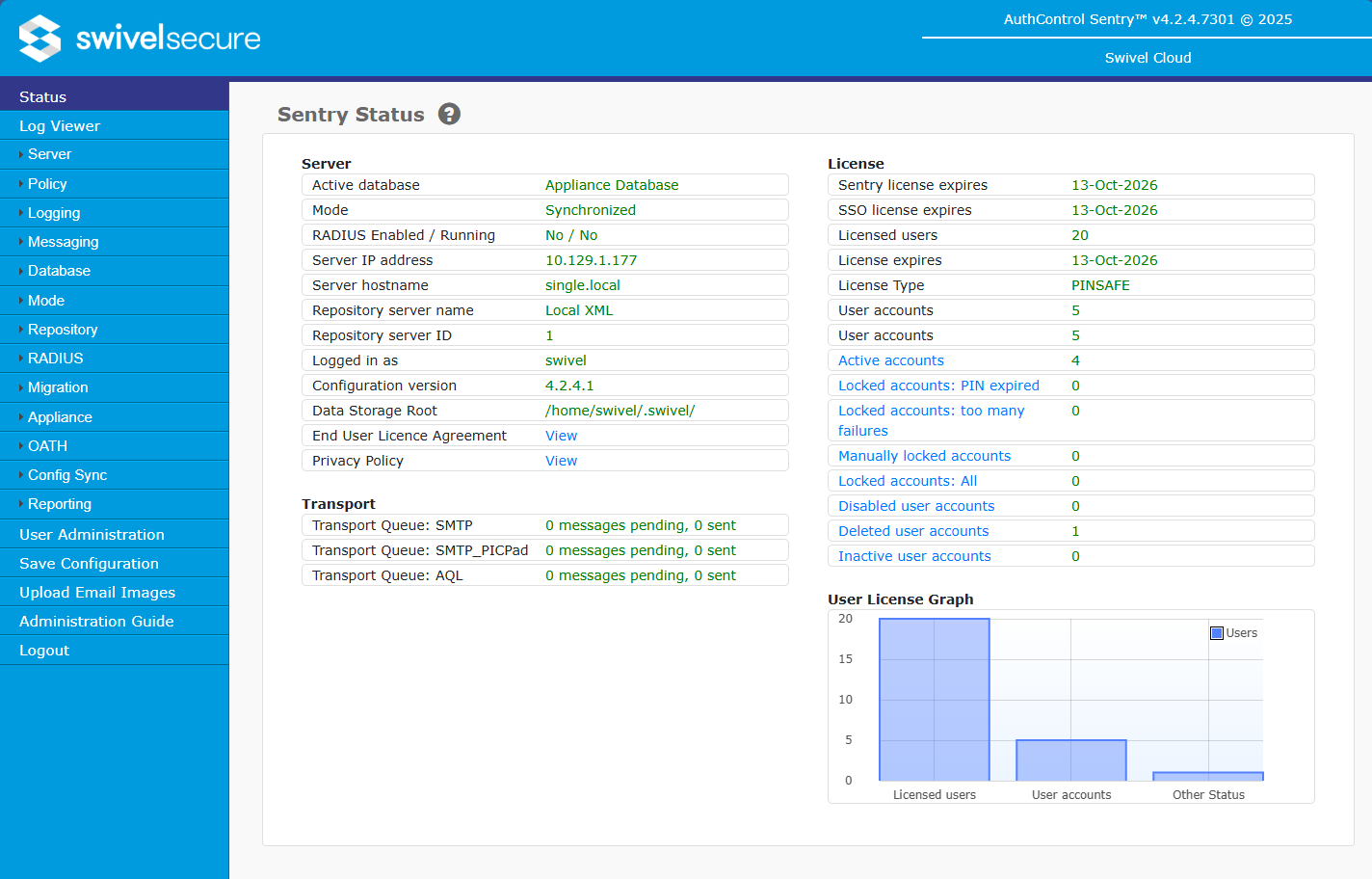
The Status Screen
The Status screen provides a high-level summary of the system status. Information visible on this dashboard typically includes:
User Statistics: The total number of users and the count of users in specific states (e.g., Locked, Inactive).
License Information: Details regarding the current license status and limits.
Version Information: The current version of the Swivel Core software.
Database Status: Connection status to the internal or external database.
Additional Menu Functions
While most menu items lead to dedicated configuration pages, there are specific utility functions available directly in the menu list.
Save Configuration
Selecting Save Configuration triggers a download of the current server configuration as an XML file.
Note
This XML file can be used to restore the configuration in the event of data loss or when migrating to a new server. The Swivel appliance also performs daily backups which include this configuration data.
Upload Email Images
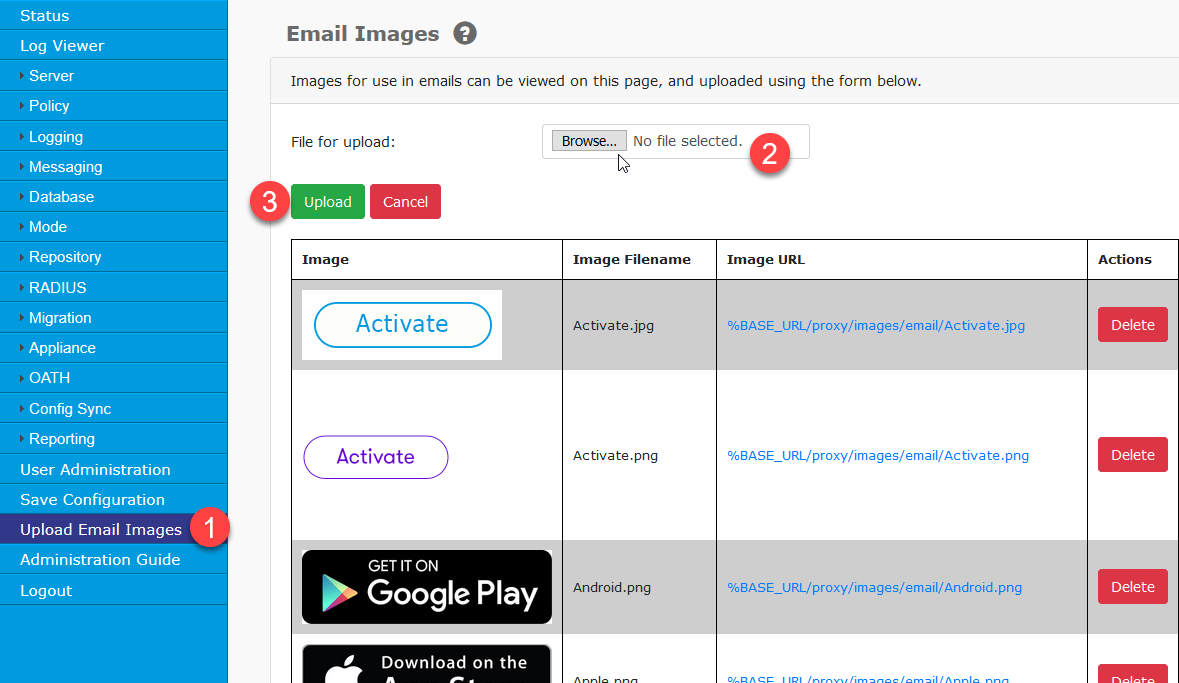
This option opens the image manager, displaying a list of images currently available for use in HTML emails (such as Dual Channel security strings). It allows administrators to upload new custom images to the appliance.
Administration Guide
Clicking this link opens the built-in guide to administering the Swivel server, providing context-sensitive help and general usage instructions.