User Portal Overview
The User Portal places all self-service applications in one central location. It allows the administrator to decide which pages to make available to end users and how those pages are to be used.
The following applications are available within the portal:
Change PIN
Reset PIN
Provision a Mobile Device
Sync a Token
Prerequisites
A Swivel Secure appliance
For Token prerequisites, see the Hard Tokens article.
QR Code Provisioning requires the appropriate provisioning features enabled on the core.
User Portal Usage
Navigate to the user portal page: https://<IP>:8443/userportal or https://<IP>/userportal
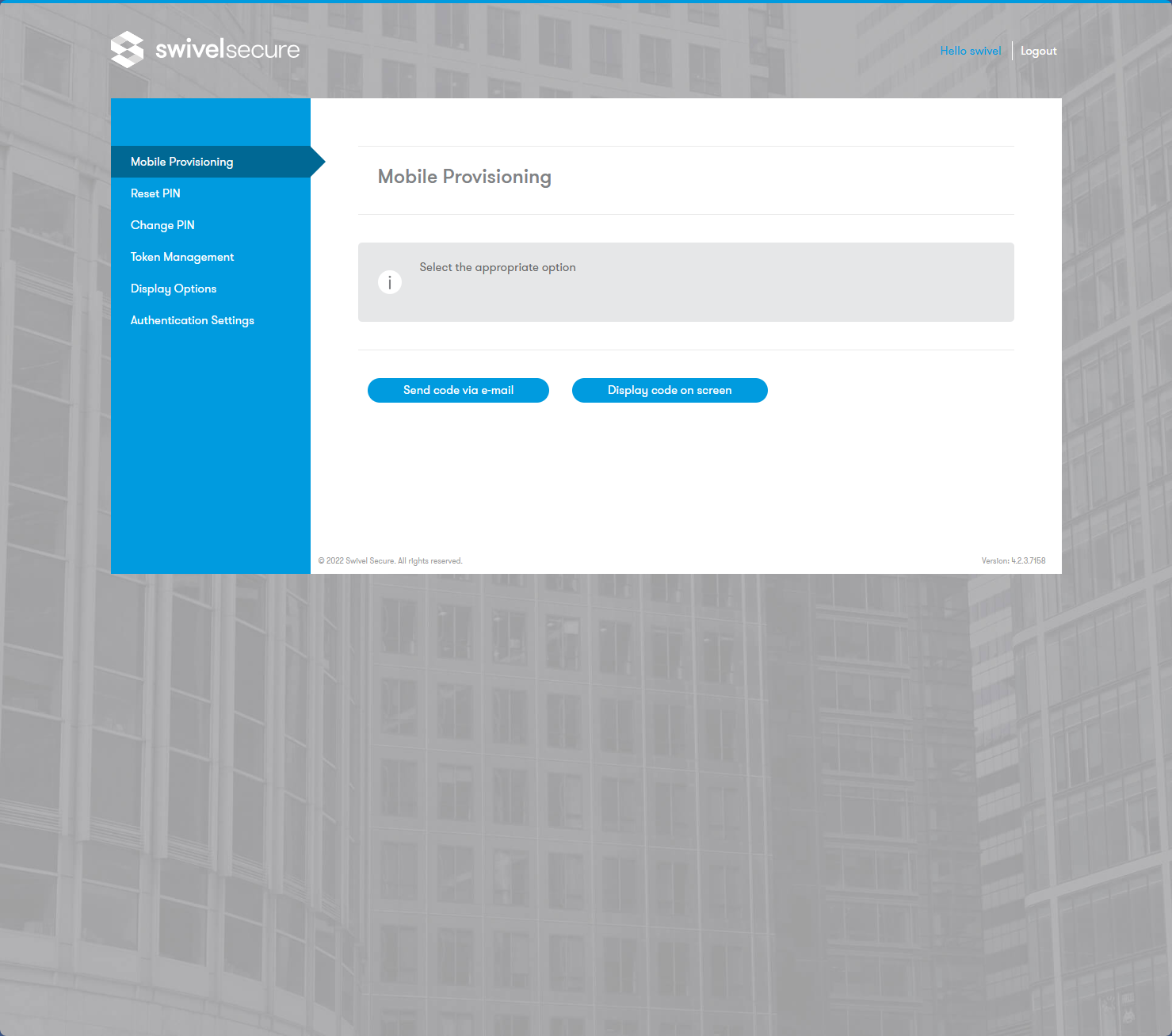
Mobile Provision
The Mobile Provision option allows a provisioning message to be sent to the user or allows the use of QR Code Provisioning.
Mobile Provision (QR Code)
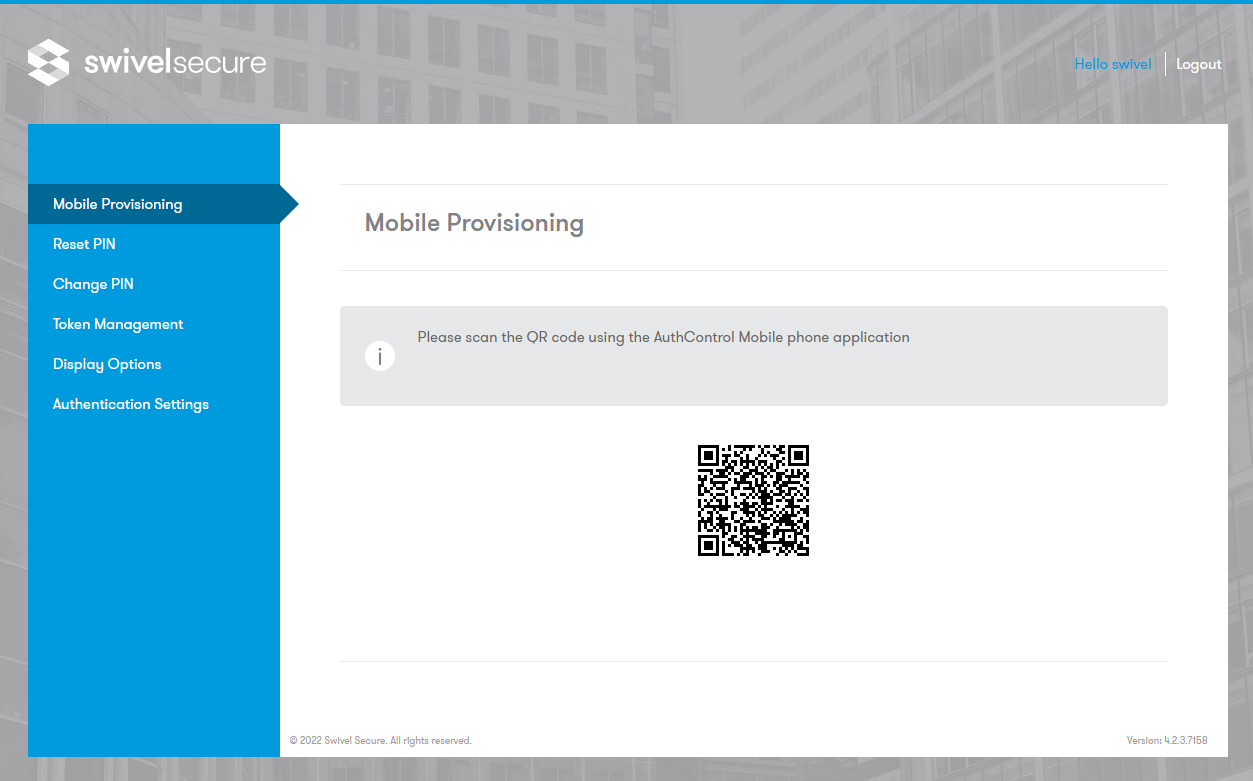
A valid OTC entry will display the QR Code for provisioning.
Reset PIN
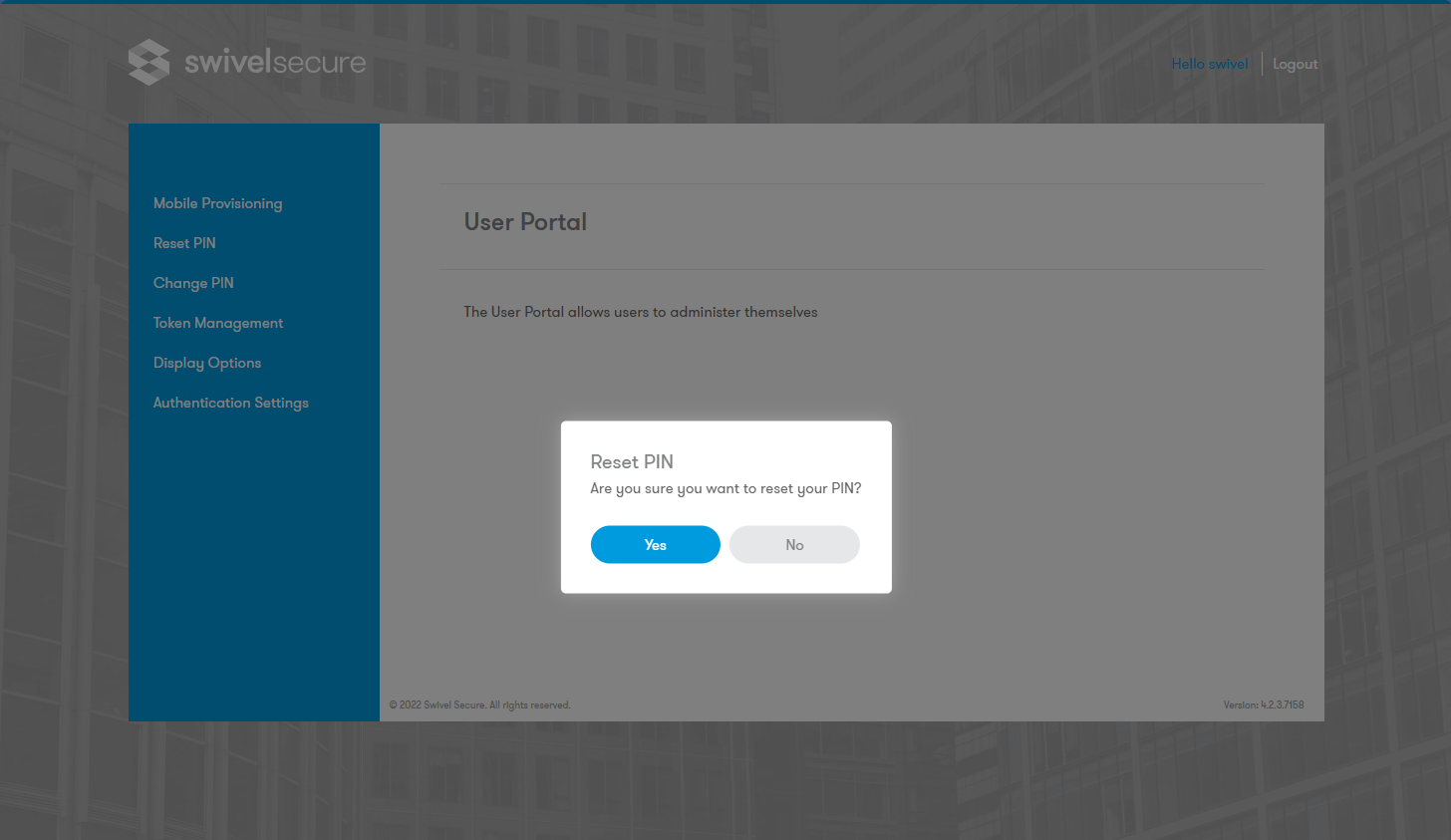
ResetPIN allows a user to request a new PIN. The user receives a reset code (via SMS/Email) to enter into the page below. If correct, a new PIN is created and sent to the user.
Change PIN
ChangePIN allows a user to change their existing PIN. Options such as TURing, Pinpad, or direct entry are available depending on the configuration.

Token Sync
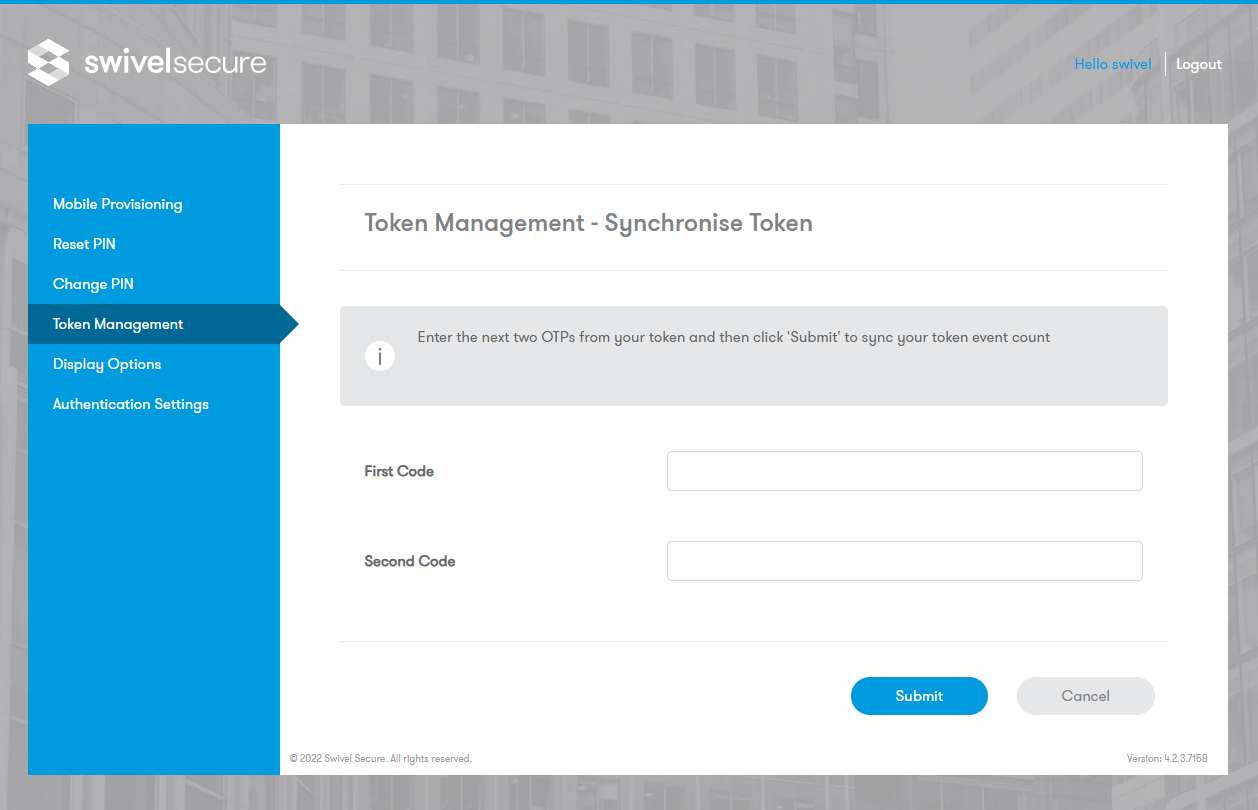
Token Management allows a user to synchronize a new or existing token by entering two consecutive OTCs from the token.
Display Options
The Display Options menu allows administrators to select which features are visible and accessible to users in the left-hand menu.
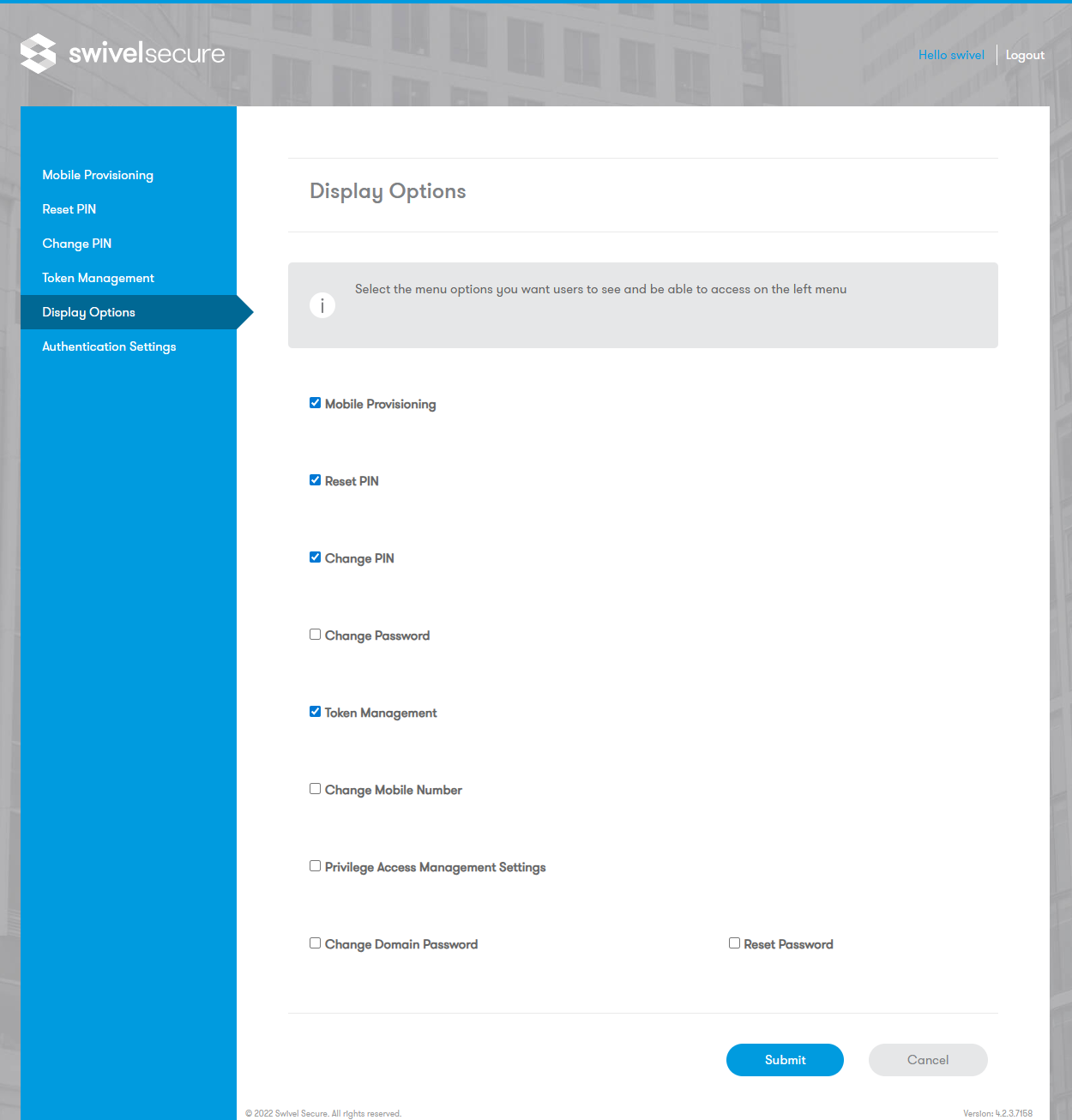
Available options include:
Mobile Provisioning: Enables the mobile provisioning section.
Reset PIN: Shows the Reset PIN option.
Change PIN: Shows the Change PIN option.
Change Password: Enables the password change feature.
Token Management: Enables token synchronization and management.
Change Mobile Number: Allows users to update their mobile number.
Privilege Access Management Settings: Enables PAM settings.
Change Domain Password: Allows domain password changes.
Reset Password: Enables the password reset feature.
Authentication Settings
The Authentication Settings menu configures how the User Portal secures access and interacts with the Swivel Core.
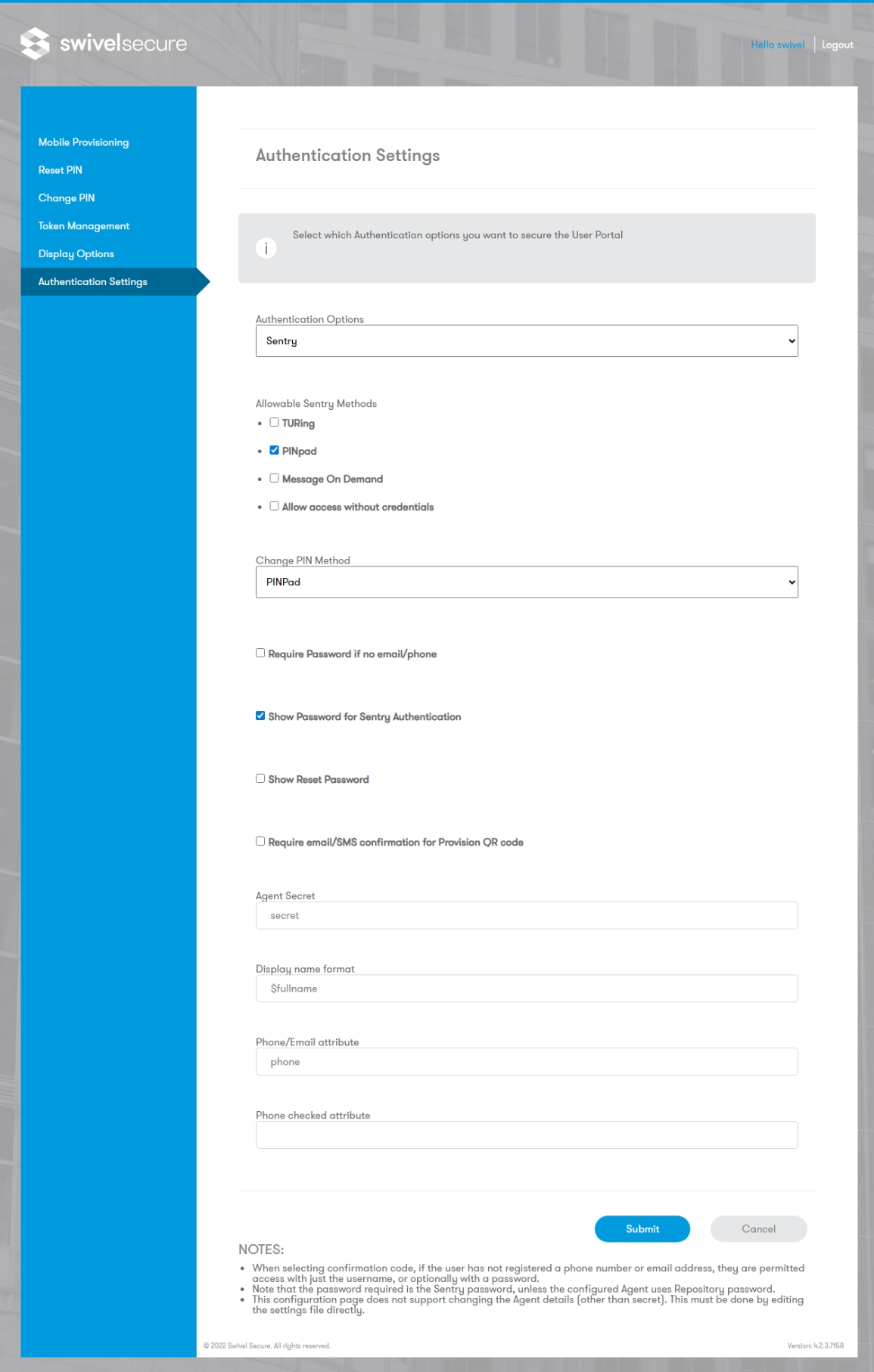
Key Settings:
Authentication Options: Selects the authentication authority used to secure the User Portal. Available options include:
Sentry: Use the standard Sentry authentication methods (similar to SSO login experience).
Confirmation Code: Authentication using a confirmation code (typically received by email).
Name Only: Validates access based on the username only (subsequent actions once logged in require confirmation codes).
Password Only: Validates access based on the password only.
Allowable Sentry Methods: Checkboxes to enable specific authentication methods such as TURing, PINpad, Message On Demand, or Allow access without credentials.
Change PIN Method: Defines the interface used for changing PINs (e.g., PINpad).
Security & Display Toggles:
Require Password if no email/phone: Enforces password requirement if contact details are missing.
Show Password for Sentry Authentication: Toggles visibility of the password field.
Show Reset Password: Toggles the reset password option.
Require email/SMS confirmation for Provision QR code: Adds a verification step for QR provisioning.
Agent Configuration:
Agent Secret: The shared secret between the portal and the core.
Display name format: Defines how the user’s name is rendered (e.g.,
$fullname).Phone/Email attribute: Specifies the attribute used for contact info (e.g.,
phone).
Note
The password required here is the Sentry password, unless the configured Agent uses a Repository password.
This page does not support changing Agent details (other than the secret). This must be done by editing the settings file directly.
User Portal Configuration Files
Configuration files are located in /home/swivel/.swivel/user-portal/
settings.properties
This file controls communication settings. Note: Restart Tomcat after making any changes.
Settings for a Local Swivel Instance:
pinsafessl=false
pinsafeserver=127.0.0.1
pinsafecontext=pinsafe
pinsafesecret=secret
pinsafeport=8181
imagessl=true
imageserver=YourSwivelURL.com
imagecontext=proxy
imageport=8443
Settings for a Remote Swivel Instance:
pinsafessl=false
pinsafeserver=RemoteSwivelIP_or_VIP
pinsafecontext=pinsafe
pinsafesecret=secret
pinsafeport=8080
imagessl=true
imageserver=YourSwivelURL.com
imagecontext=proxy
imageport=8443
portalconfig.properties
Controls the behavior of the ChangePIN function. Note: Restart Tomcat after making any changes.
# valid settings: directEntry, turingEntry, pinpadEntry
changepin.page=turingEntry
Language Files
Language files allow text customization and are located in:
/usr/local/tomcat/webapps2/userportal/WEB-INF/classes
messages_en.properties: This file contains the text strings and language settings which may be customised.
Changing the Logo
The User Portal will absorb any theming or customisations applied to the SSO application under the SSO -> General Configuration menu.
Known Issues
Warning
The User Portal ONLY supports the UTF-8 Character Code Set.
Troubleshooting
A Reset code could not be requested
Error: “The Swivel server does not allow Account Resets.”
Solution: The ResetPIN feature must be enabled on the Swivel Administration console.
Changes to XML/Config files do not take effect
Cached Files: You may need to clear the cached compiled files for the User Portal.
Stop Tomcat.
Delete the contents of
/usr/local/tomcat/work/Catalina-proxy/localhost/userportal.Restart Tomcat. The folder will automatically be re-created.
File Locations: Ensure you are editing the correct files.
Config files should be in
~/.swivelportal/conf(or as stated inSWIVEL_PORTAL_HOME).Do not edit files inside
<path to Tomcat>\webapps2\userportal\WEB-INF, as these will be ignored.
Common Error Messages
“There was an error please check your username and pin code…” Contact the System Administrator. Verify the specific error logged on the Swivel server associated with the User Portal.
“Change PIN failed for user: <user>, error: The use of a static password is mandatory” The user configuration requires a static password to be set.
“Change PIN failed for user: <user>, error: The one-time code was missing or malformed” The user entered an incorrect OTC.
“AgentXML request failed, error: The XML request sent from the agent was malformed” (Seen in Swivel Log Viewer) “Something went wrong. Please try again or contact your system administrator.” (Seen in User Portal) This often occurs when attempting to sync a token that is already synchronized.
“Dual channel message request failed, error: On-demand dual channel delivery is disabled” On-demand dual channel delivery must be enabled on the Swivel Administration console under Server > Dual Channel to send SMS/Email messages.