Messaging
Overview
The AuthControl Sentry Core can be configured to send messages for various events, to synced in user accounts. This is done by mapping and syncing user groups and destination attributes, such as email address or phone number, which exist on external LDAP based data sources.
When accounts are synced into AuthControl Sentry they can be sent an Account Creation email and an App Provision email automatically. However this requires that their mail attribute is populated and a Messaging transport has been setup prior. Users can also be set to receive an SMS containing a One Time Code for use during authentication.
The types of messages available to send are:
Message |
Type |
Purpose |
|---|---|---|
Credentials Alert |
Alert |
Welcome email and credentials. There are different templates for new and existing users, with or without credentials |
App Provision |
Alert |
Mobile App Provision |
One Time Code |
Strings |
One Time Code for use during authentication |
PIN expiry |
Alert |
Warning of PIN expiry |
PIN change required |
Alert |
PIN change is required now or account will be locked |
PIN changed |
Alert |
Notification that PIN has been changed by the user |
Account locked |
Alert |
Notification that user’s account has been locked |
Account unlocked |
Alert |
Notification that user’s account has been unlocked |
Account inactive |
Alert |
Notification that user’s account has been inactive |
Account inactive warning |
Alert |
Notification that user’s account will soon become inactive |
Reset Code |
Alert |
Reset code for use during PIN reset validation process |
Confirmation Code |
Alert |
Confirmation code for user portal validation processes |
Password changed |
Alert |
(Non-AD) password credential has been changed by the user |
Passkey provision |
Alert |
Notification of a passkey provisioning |
Provision |
Alert |
Prompt to provision a mobile app |
Prompt for response |
Push |
Sent by the Push transport to confirm authentication |
Generic message |
Alert |
This can only be triggered by an API call, and can contain any text |
All messages (except Generic) can be customised from the Messaging menu.
Setup email messaging
General Prerequisites
Previously configured repository
All users setup with a mail attribute in the repository
Users synced into groups in AuthControl Sentry
Setup the messaging transport
Select Messaging -> General, from the left hand menu. The general screen is where we map user groups and destination attributes (such as email or phone) to messaging transports. You will notice an existing messaging transport entry named ‘SMTP’. This is a pre-defined entry which is linked to the SwivelSMTP group. Let’s take a look at this now. Expand the SMTP entry:
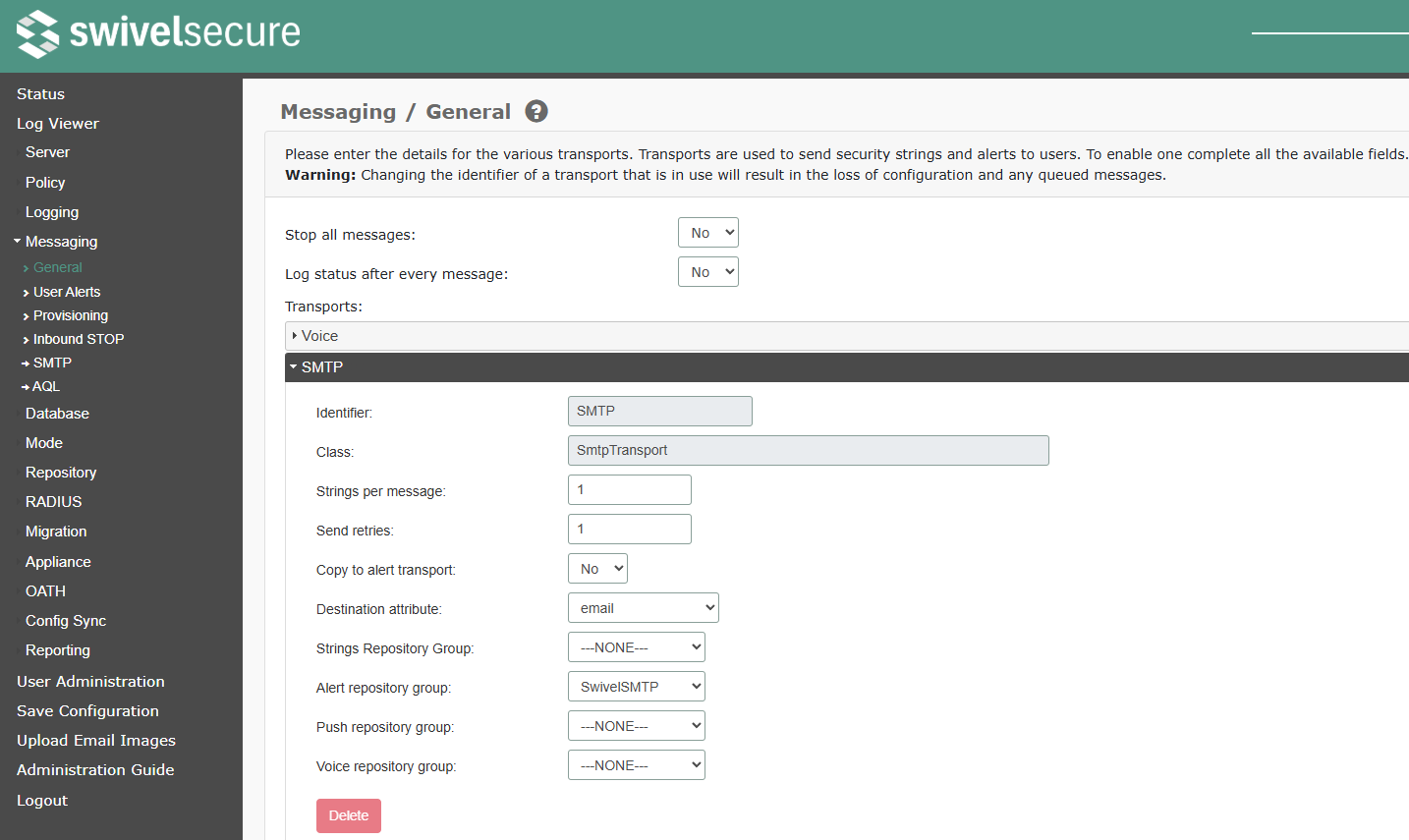
There are two settings that apply to all messages:
‘Stop all messages’: This prevents any messages being sent out. Note that messages are simply dropped, and are not sent when this is disabled.
‘Log status after every message’: This option logs the message queue status after every message sent. It is only of use for testing or troubleshooting.
Each transport has the following settings:
‘Identifier’: This is just a label to identify the transport
‘Class’: The Sentry transport class this transport uses. When creating a new transport, start typing the class and a list of matching classes will be shown.
‘Strings per message’: when sending out security strings, how many strings should be sent in each message
‘Send retries’: The number of retries for a single message before discarding it
‘Copy to alert transport’: If “Yes”, all security strings will also be sent to the user’s alert transport, if they have one.
Additionally, you can see the following mappings:
Item |
Value |
|---|---|
Destination attribute |
|
Strings Repository Group |
—NONE— |
Alert repository group |
SwivelSMTP |
Push repository group |
—NONE— |
Voice repository group |
—NONE— |
So by being a member of the SwivelSMTP group and having a populated email attribute synced in from the repository, you can receive email based alerts via this Messaging transport.
In addition to these common settings, each transport you add will have its own entry in the Messaging menu. As there are many transports, we do not list them all here.
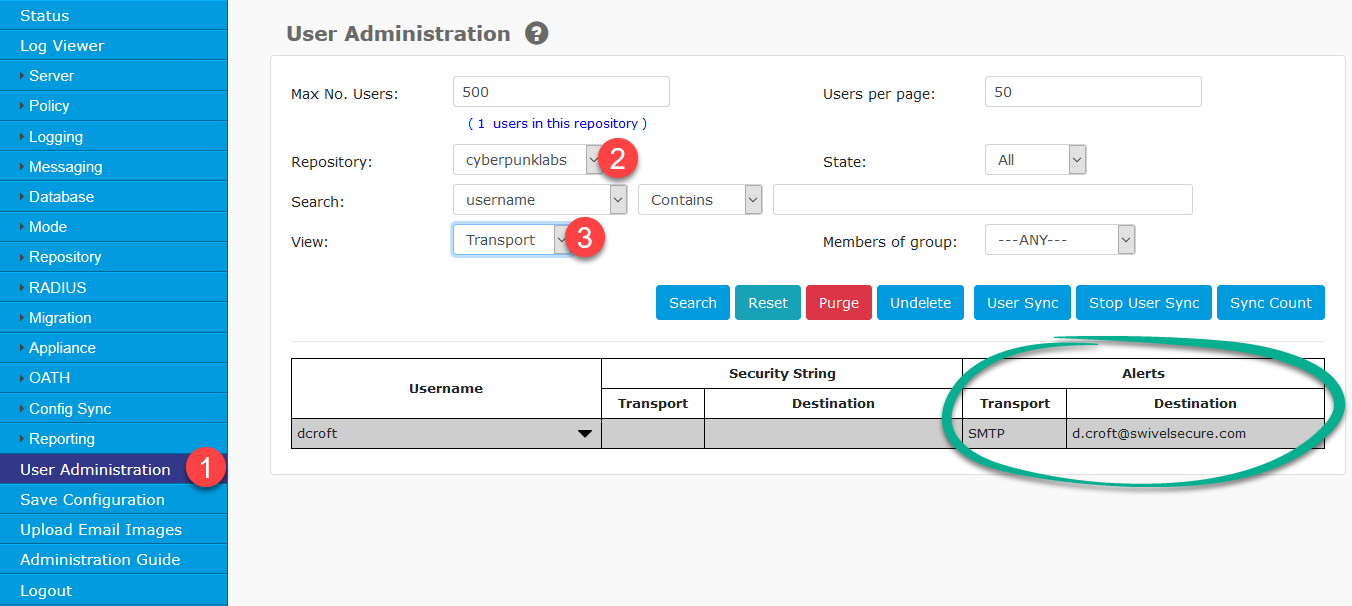
We can confirm a user’s messaging transport assignment on the User Administration screen. In the left hand menu, click ‘User Administration’, select your user repository from the ‘Repository’ drop down. Then select the ‘Transport’ option from the ‘View’ drop down. The user list will update below to display the messaging transport mappings:
Sending out emails automatically
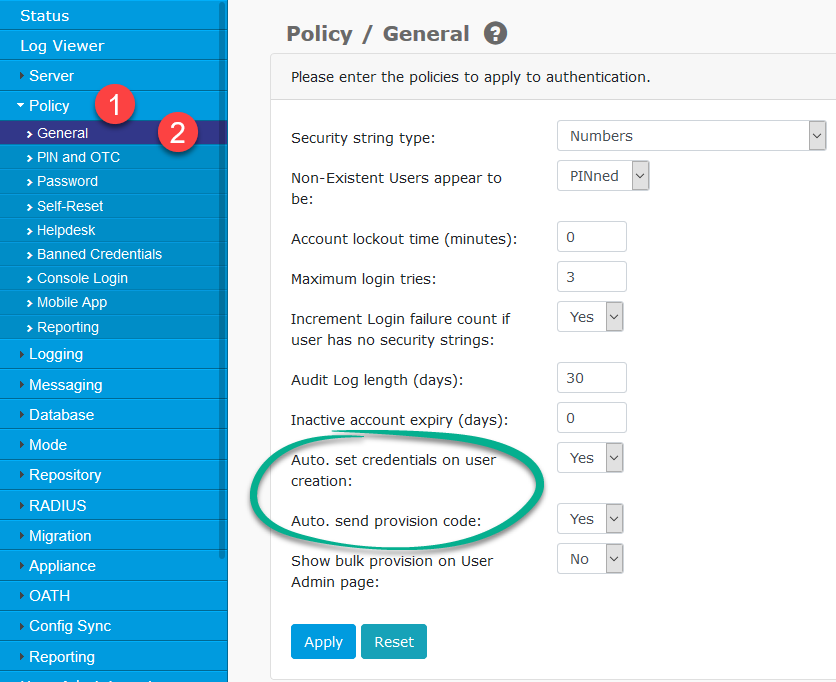
When an account is created, the user can be emailed with a welcome email (containing their PIN number if using a PIN based authentication method), and a Mobile App provision email to help get them setup with authentication via the AuthControl Mobile app. These automated emails are configured under the Policy -> General menu:
Policy |
Setting |
|---|---|
Auto. set credentials on user creation |
Yes |
Auto. send provision code |
Yes |
Hint
If a user has already been synced in to the AuthControl Sentry database, then an attempt will already have been made to send the messages. So you will either need to manually invoke the sending of the messages or delete and purge the user accounts from AuthControl Sentry and import them again (as new users).
Email template customisation
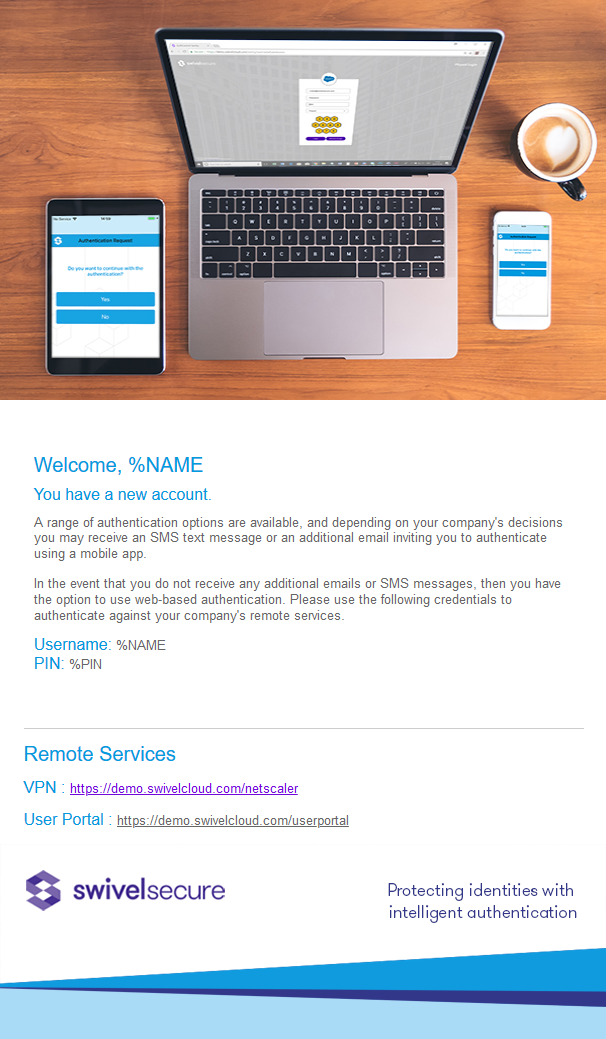
Here is a preview of the built-in welcome (and PIN credential) email:
Here is a preview of the built-in app provision email:
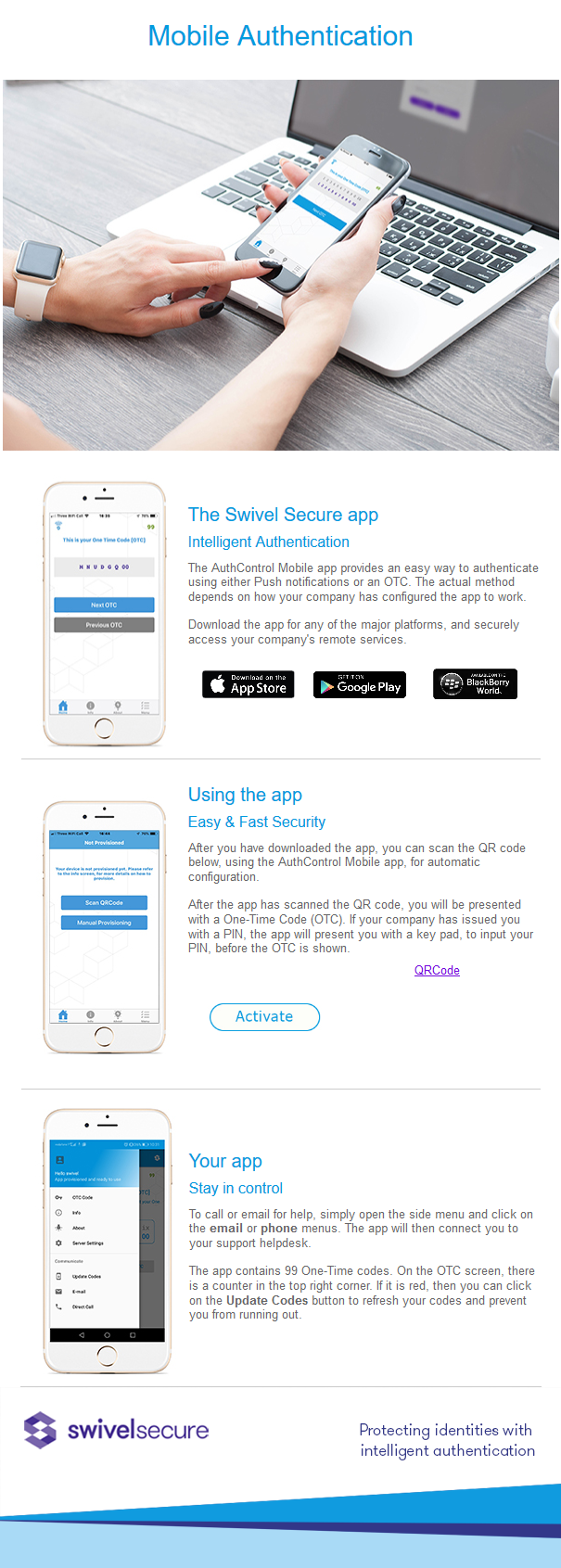
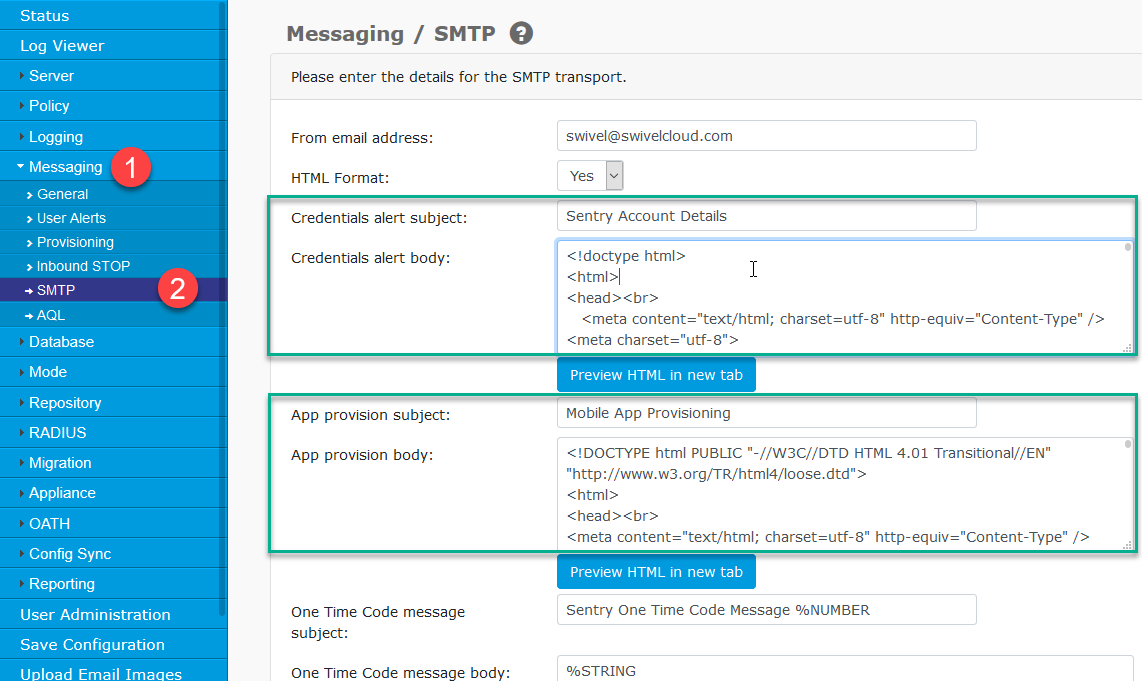
You can customise the HTML of these email templates under Messaging -> SMTP in the left hand menu:
Hint
We recommend that you copy and paste the HTML into an editor and paste it back in once modified, rather than attempting to edit it inside the form field.
Variables
The text in the messaging transports can be configured as required. There are a number of variables that can be used within the transport:
%CRCarriage Return (a new line)%LFLine Feed (a new line)%NAMEThe username%PINThe PIN number%PASSWORDPINsafe password where used%NUMBERNumber of the security string sent out%STRINGThe Security String%DAYSNumber of days, used for PIN expiry%TIMEThe time which a PIN was changed%DATEThe date which a PIN was changed or warning for inactive accounts%CODEA code used for reset PIN%{attr_name}Where attr_name is the name of the attribute (the Swivel name, not the repository attribute - it is also case sensitive). Example: %{altusername}
The email images reference a BASE URL which is configured under Server -> Name in the left hand menu. If you wish for email images to be retrieved from the AuthControl Sentry appliance then you must specify the FQDN of the appliance as it appears to the outside world, here:
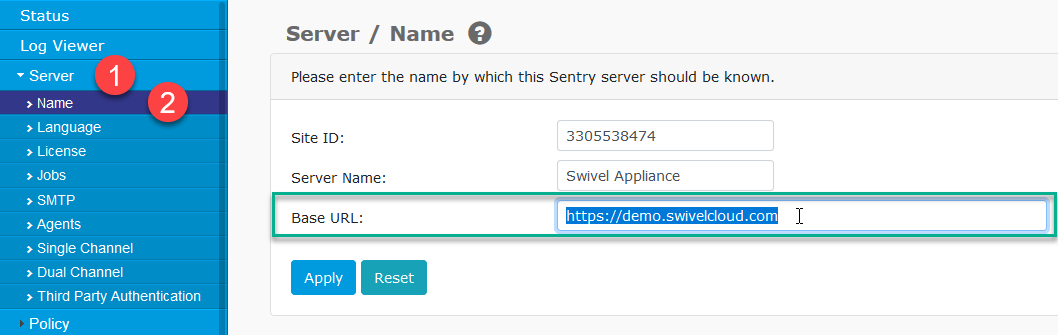
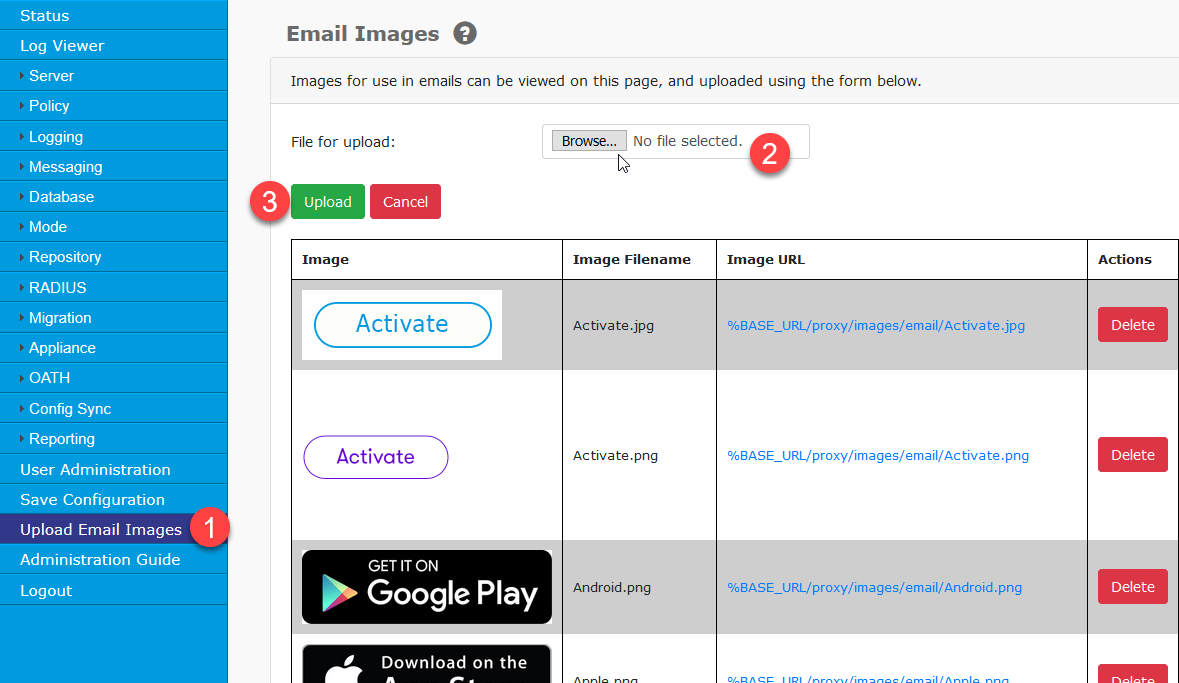
Once the BASE URL is configured and access is provided from the outside world, you can upload custom email images using the ‘Upload Email Images’ left hand menu option. First click ‘Browse’ to select your custom image, then click the ‘Upload’ button. Once uploaded you can then utilise these images into your HTML email.
Push Notifications
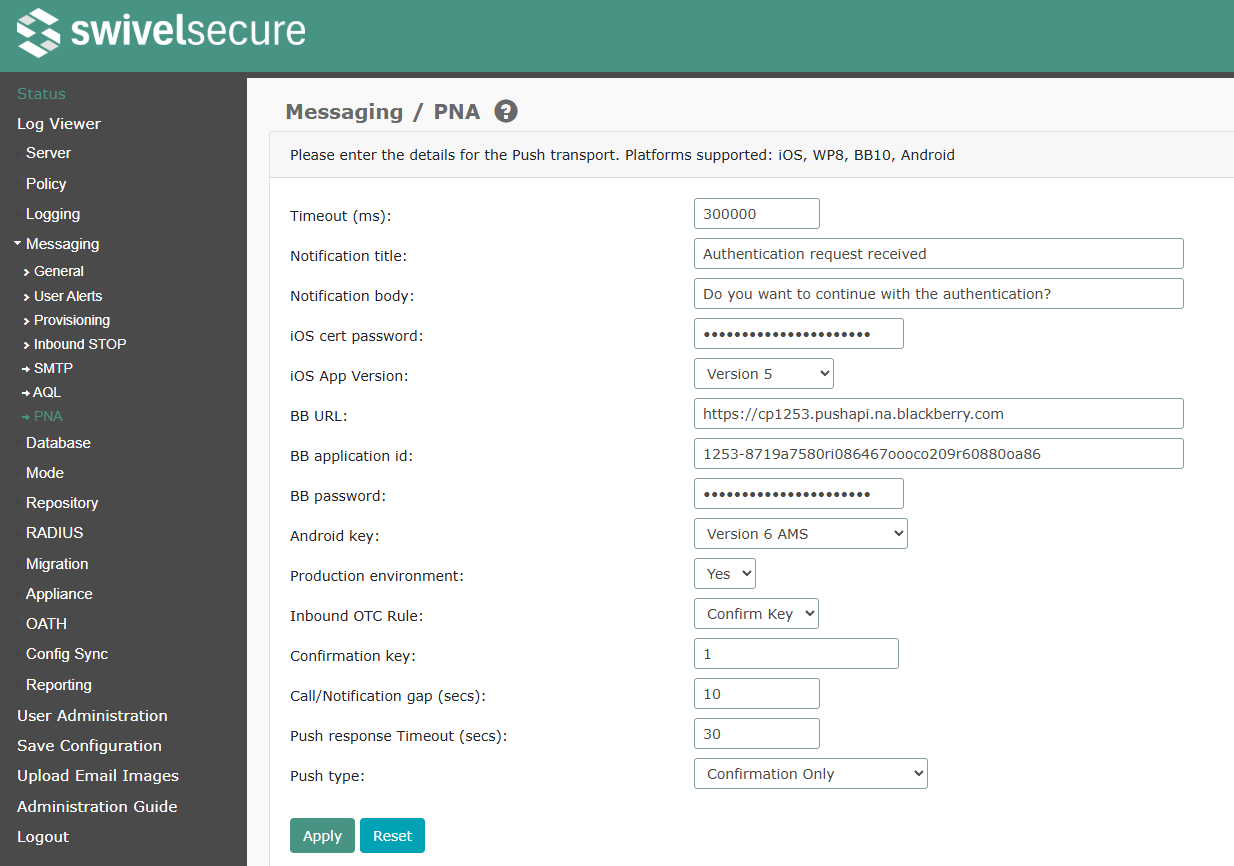
The PNA transport is a special type of transport, design specifically to handle mobile app push notifications. It is not intended to manage general alert messages.
Timeout: how long to wait for confirmation from the push server. This is not the same as the Push response timeout, below.
Notification title: the title of the push notification
Notification body: the body of the push notification
The following settings are specific to particular versions of the mobile app.
iOS cert password: the password for the APNS certificate. Do not change this unless instructed to do so by Swivel Secure support.
iOS App Version: the version of the iOS mobile app this applies to.
Note
The APNS password only applies to old iOS versions. Newer versions use Firebase for push messaging.
BB URL: The URL for Blackberry push notifications
BB application id: The Blackberry application ID
BB password: The Blackberry push password
Note
We no longer support Blackberry. The above settings are for legacy apps only.
Android key: The version of the Android app this applies to.
Production environment: Usually, this should be set to Yes, unless advised by Swivel Secure Support
Inbound OTC Rule: this generally applies only to push methods other than the mobile app. For the mobile app, it should always be “Confirm Key”.
Confirmation key: for the mobile app, this should always be “1”
Call/Notification gap: the minimum length of time between successive calls. Any attempt to retry push notification will fail if it is too soon after the previous one.
Push response Timeout: how long to wait until a push notification is deemed to have failed
Push type: whether to request confirmation and/or biometric verification in the mobile app. This only applies to versions of the app that support it: in the latest app, biometric support is handled by the app itself.
User Alerts
This page allows you to specify which activities will trigger a message to the affected user.
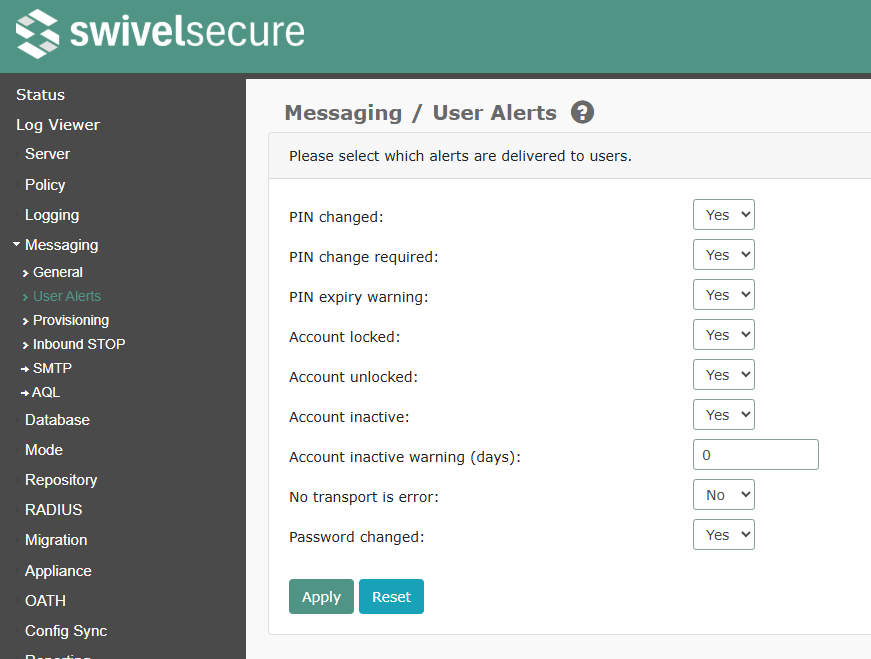
‘PIN changed’
‘PIN change required’: the user is required to change their PIN
‘PIN expiry warning’: the user will be required to change their PIN soon.
‘Account locked’
‘Account unlocked’
‘Account inactive’
‘Account inactive warning’: how soon before the account becomes inactive will the message be sent
‘No transport is error’: If true, log messages that the user has no transport will be recorded as errors, rather than warnings
‘Password changed’
Provisioning
This page lists the headers that will be checked during mobile app interaction, if header checking is enabled.
Inbound STOP
This page deals with responses to message stop requests.
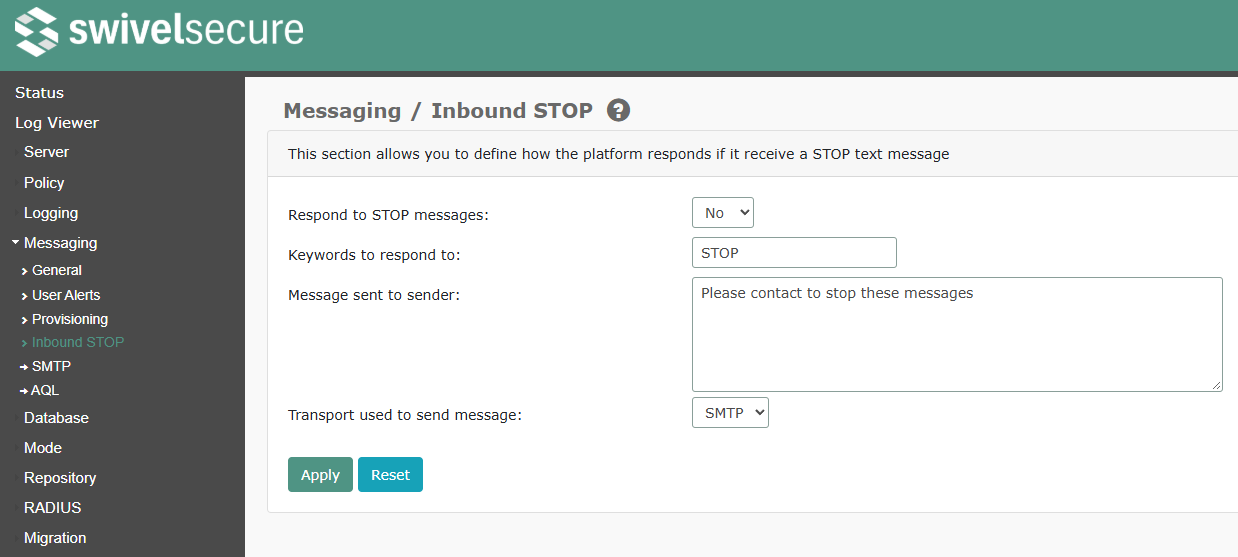
These settings determine whether to respond to a STOP request, and what message to send. Sentry does not currently support blocking messages for a specific user.